
Upload PDF File
Click to browse or drag and drop your PDF here
Convert your PDF documents into professional PowerPoint presentations with our PDF to PowerPoint Converter. Transform static PDF content into dynamic, editable presentation slides for meetings, lectures, reports, and presentations.
PDF to PowerPoint Conversion
PDF to PowerPoint conversion is the process of extracting content from PDF documents and transforming it into Microsoft PowerPoint format (PPTX). This allows you to take information locked in PDF format and convert it into presentation slides that can be edited, animated, and presented.
How the PDF to PowerPoint Converter Works
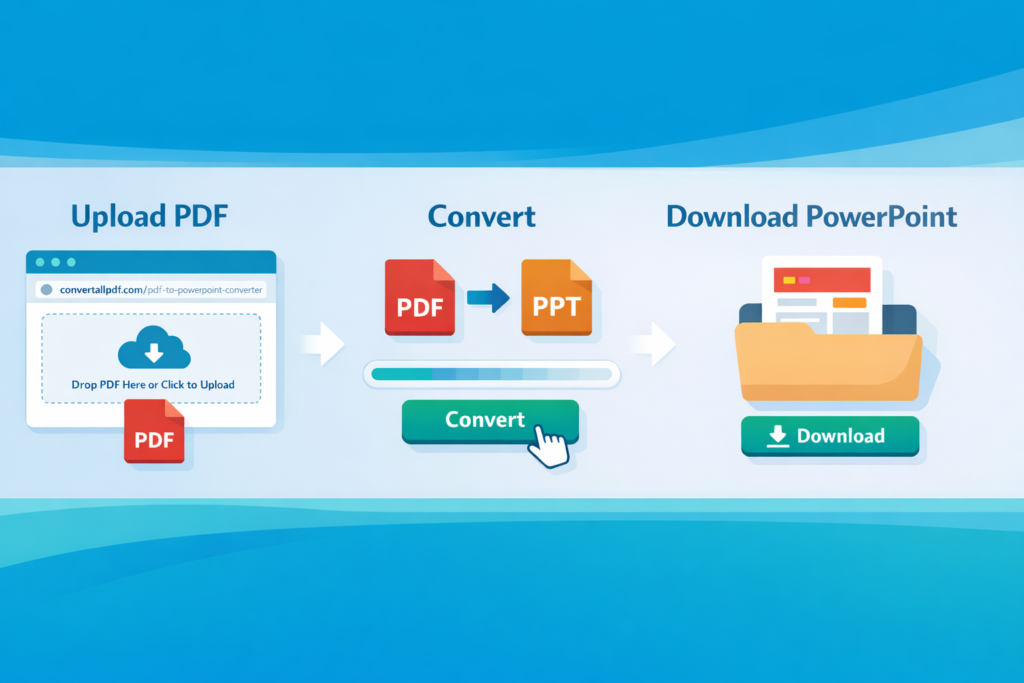
Step 1: Upload Your PDF Document
Begin by uploading your PDF file. You can either click the upload area to browse for a file on your computer or simply drag and drop your PDF file directly onto the upload area.
Step 2: Review File Information
Once uploaded, the tool will display key information about your PDF:
- The file name
- File size
- Number of pages in the document
- Current conversion status
Step 3: Convert to PowerPoint
Click the “Convert to PowerPoint” button to begin the conversion process. The tool will:
- Load the PowerPoint generation library
- Analyze and extract content from each page of your PDF
- Transform the extracted content into PowerPoint slides
- Generate a preview of the converted slides
Step 4: Download Your Presentation
After conversion is complete, the “Download PowerPoint” button will appear. Click it to save your PowerPoint presentation to your computer.
Key Features of Our Converter
Accurate Content Extraction
Our converter intelligently extracts text content from PDF files, preserving the structure and hierarchy of information on each page.
One Page to One Slide Conversion
Each page of your PDF document becomes a separate slide in your PowerPoint presentation, maintaining the original document structure.
Professional Slide Layout
The tool automatically creates professionally formatted slides with proper titles, content areas, and spacing that follows presentation best practices.
Text Formatting
Extracted text is organized into readable paragraphs with appropriate font sizes and formatting that works well in presentation environments.
Multi-Page Support
Convert PDF documents of any length, from single-page documents to comprehensive reports with dozens of pages.
Browser-Based Processing
All conversion happens locally in your web browser, ensuring your documents remain private and secure on your own device.
Supported PDF Types
Text-Based PDFs
Documents created from word processors, presentation software, or other applications that contain selectable text work best with our converter.
Reports and Documents
Business reports, academic papers, white papers, and other document types convert well, with each page becoming a distinct presentation slide.
Scanned Documents
For scanned PDFs, the converter can extract any embedded or OCR-processed text. For purely image-based scanned documents, text extraction may be limited.
Mixed Content PDFs
Documents containing both text and images are supported, though the current version focuses primarily on text extraction and formatting.
Common Use Cases
Business Presentations
Convert business reports, financial statements, and corporate documents into presentation-ready slides for meetings, investor pitches, and executive briefings.
Educational Materials
Transform course materials, research papers, and academic documents into presentation format for lectures, seminars, and classroom instruction.
Sales and Marketing
Convert product specifications, marketing materials, and sales documents into presentation format for client meetings and product demonstrations.
Conference Presentations
Prepare conference presentations by converting research papers, abstracts, and supporting documents into presentation slides.
Training Materials
Create training presentations by converting instructional documents, manuals, and procedural guides into engaging presentation format.
Report Summarization
Transform lengthy reports into concise presentation summaries for stakeholder meetings and review sessions.
Best Practices for Quality Conversions
Prepare Your Source PDF
For optimal results, ensure your PDF contains clear, selectable text rather than images of text. Text-based PDFs produce the cleanest conversions.
Check Document Structure
Documents with clear headings and paragraph structure convert most effectively, as the tool can better distinguish between titles and body content.
Review Complex Layouts
PDFs with multi-column layouts, sidebars, or complex formatting may require some manual adjustment in PowerPoint after conversion.
Preview Before Download
Always review the preview of your converted slides to ensure content has been properly extracted and formatted.
Save Original Files
Keep copies of your original PDF files for reference and in case you need to make changes or reconvert the document.
Technical Information
How It Works
Our PDF to PowerPoint converter combines PDF.js for PDF rendering and text extraction with PptxGenJS for PowerPoint file generation. This dual-library approach ensures reliable performance and accurate formatting.
Browser Requirements
The tool works in all modern web browsers, including:
- Google Chrome (version 60 or later)
- Mozilla Firefox (version 55 or later)
- Microsoft Edge (version 79 or later)
- Safari (version 11 or later)
File Format Support
- Input: PDF files (all versions from 1.0 to 2.0)
- Output: PowerPoint PPTX format (compatible with Microsoft PowerPoint 2007 and later, Google Slides, and other presentation software)
Performance Considerations
Conversion speed depends on several factors:
- The size of your PDF file
- The number of pages in your document
- Your computer’s processing power
- Your internet connection speed (for library loading)
Frequently Asked Questions
Is there a limit to how many PDFs I can convert?
No, there are no limits on usage. You can convert as many PDF files to PowerPoint as you need, completely free of charge.
How secure is my data during conversion?
Your data remains completely secure. All processing happens locally in your web browser. Your PDF files are never uploaded to any external servers or stored anywhere beyond your current browser session.
Can I convert password-protected PDFs?
The current version does not support password-protected PDFs. You will need to remove password protection from your PDF file before attempting conversion.
What happens to images in my PDF?
The current version focuses primarily on text extraction. Images embedded in PDF files are not included in the PowerPoint output. For presentations requiring images, you may need to add them manually after conversion.
How accurate is the text extraction?
The tool provides accurate text extraction for text-based PDFs. For scanned documents, the accuracy depends on the quality of the scan and any OCR processing that may have been applied to the PDF.
Can I convert PDFs with special fonts?
The converter uses standard system fonts for PowerPoint generation. Special fonts from your PDF may be substituted with similar available fonts in the presentation.
What if my PDF contains multiple languages?
The tool supports PDFs containing text in multiple languages, provided the text is properly encoded in the PDF file and the fonts support the required character sets.
Is an internet connection required?
An internet connection is required to load the necessary conversion libraries, but your actual PDF data remains on your local machine throughout the entire conversion process.
Troubleshooting Common Issues
Conversion Errors
If you encounter errors during conversion:
- Check that your PDF file is not corrupted
- Ensure you have a stable internet connection
- Verify that your PDF is text-based and not purely image-based
- Try refreshing the page and attempting the conversion again
Poor Text Extraction
If text extraction is incomplete or inaccurate:
- Verify that text in your PDF is actually selectable (try selecting text in your PDF viewer)
- Check for unusual fonts or encoding in your PDF
- Consider simplifying complex layouts before conversion
PowerPoint File Issues
If your downloaded PowerPoint file doesn’t open properly:
- Ensure you have PowerPoint or compatible software installed
- Verify the file downloaded completely (check file size)
- Try opening the file in different presentation software
- Consider converting the PDF in smaller sections if it’s very large
Slow Conversion
For large or complex PDFs:
- Be patient as processing may take longer
- Close other browser tabs and applications to free up system resources
- Consider breaking large PDFs into smaller sections for conversion
Tips for Better Presentations
- Start with Clean Source Material: Well-structured PDFs with clear headings and paragraphs convert best
- Review and Edit: Always review your converted presentation and make any necessary adjustments to formatting and content flow
- Add Visual Elements: Consider adding relevant images, charts, or graphics to enhance your presentation
- Check Slide Count: Remember that each PDF page becomes a slide, so consider whether you need to condense or expand content
- Test Presentation: Run through your presentation to ensure timing and flow work for your intended audience
Advanced Usage
Customizing After Conversion
After downloading your PowerPoint presentation, you can:
- Apply different design templates
- Add animations and transitions
- Insert additional slides or content
- Customize formatting and layouts
- Add speaker notes and comments
Combining Multiple PDFs
For presentations requiring content from multiple PDFs:
- Convert each PDF separately
- Download each converted presentation
- Combine slides from different presentations in PowerPoint
- Apply consistent formatting across all slides
Enhancing Presentations
Consider enhancing your converted presentations by:
- Adding company branding
- Including relevant data visualizations
- Creating summary slides
- Adding interactive elements
- Incorporating multimedia content
Support and Assistance
If you encounter persistent issues with the PDF to PowerPoint converter:
- Check that you are using an updated version of a supported web browser
- Verify that your PDF file is not corrupted or password-protected
- Ensure you have sufficient system resources available
- Try converting a simpler PDF document to test basic functionality
For complex PDFs with intricate layouts, you may need to do additional formatting work in PowerPoint after conversion, or consider simplifying the source PDF before conversion.
Note: This tool is designed for text-based PDF conversion. For optimal results, ensure your PDF contains selectable text and clear document structure before conversion.