
Drop PDF file here or click to browse
Supported format: PDF files
Convert your PDF documents into Excel spreadsheets with ease using our PDF to Excel Converter. Extract tables, data, and text from PDF files and transform them into organized Excel sheets for data analysis, reporting, and management.
What is PDF to Excel Conversion?
PDF to Excel conversion is the process of extracting data from PDF documents and converting it into Microsoft Excel format (XLSX). This allows you to work with your data in a spreadsheet environment where you can sort, filter, calculate, and analyze information that was previously locked in a PDF format.
How to Convert PDF to Excel
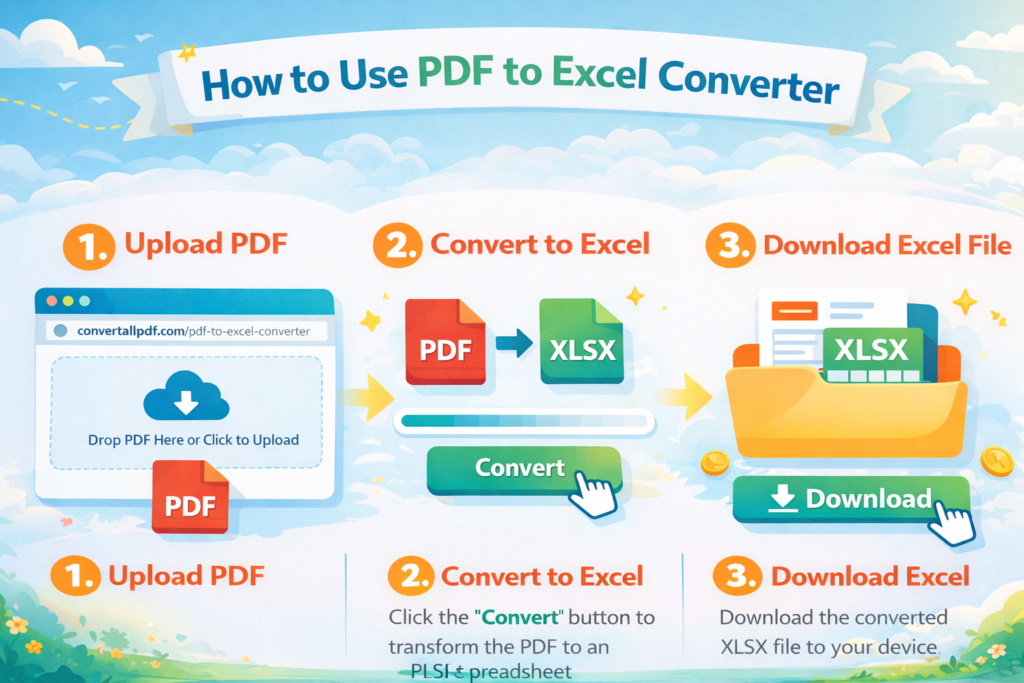
Follow these simple steps to convert your PDF files to Excel:
Step 1: Upload Your PDF File
Click the “Choose PDF File” button or drag and drop your PDF document directly into the upload area. Our tool supports all standard PDF formats.
Step 2: Preview File Information
Once uploaded, you’ll see important file details including:
- File name and size
- Number of pages
- Number of tables detected
Step 3: Convert to Excel
Click the “Convert to Excel” button to start the conversion process. Our tool will:
- Extract text and data from your PDF
- Detect tables and structured information
- Process the data for Excel formatting
Step 4: Download Your Excel File
After conversion is complete, click “Download Excel File” to save your converted spreadsheet to your computer.
Key Features
Accurate Data Extraction
Our converter uses advanced algorithms to accurately extract text and data from PDF documents while maintaining the original structure and formatting.
Table Detection and Preservation
The tool automatically detects tables within your PDF and preserves their structure in the Excel output, ensuring data remains organized in rows and columns.
Multiple Table Support
When your PDF contains multiple tables, our converter creates separate Excel sheets for each table, keeping your data organized and accessible.
No File Size Limits
Convert PDFs of any size without restrictions. Our tool processes both small and large documents efficiently.
Browser-Based Security
All conversion happens locally in your web browser. Your PDF files never leave your computer or get uploaded to external servers, ensuring complete privacy and security.
Fast Processing
Experience quick conversion times even with multi-page PDF documents. The tool processes files efficiently without compromising on data accuracy.
Supported PDF Types
Our PDF to Excel converter works with various PDF formats:
Text-Based PDFs
Documents created from Word, Excel, or other office applications that contain selectable text yield the best results with accurate data extraction.
Scanned Documents
For scanned PDFs, the tool will extract any embedded text. Note that purely image-based scanned documents may require Optical Character Recognition (OCR) software first for optimal results.
Tables and Forms
PDFs containing tables, forms, and structured data are converted with special attention to maintaining the original layout and organization.
Common Use Cases
Financial Data Extraction
Convert financial reports, invoices, and bank statements from PDF to Excel for easier analysis, calculations, and financial modeling.
Business Reporting
Transform business reports, sales data, and performance metrics from PDF format into Excel for data manipulation, chart creation, and trend analysis.
Academic Research
Extract research data, survey results, and statistical information from academic papers and convert them into Excel for further analysis and visualization.
Data Migration
Move data from PDF-based systems into Excel for integration with other business tools, databases, or reporting systems.
Inventory Management
Convert inventory lists, product catalogs, and supply chain documents from PDF to Excel for better inventory tracking and management.
Best Practices for Optimal Results
Prepare Your PDF
For best results, ensure your PDF contains selectable text rather than just images of text. Text-based PDFs yield the most accurate conversions.
Check Complex Layouts
PDFs with complex layouts, multiple columns, or merged cells may require manual adjustments after conversion. Review the output carefully.
Verify Data Accuracy
Always check the converted Excel file against the original PDF to ensure all data has been accurately transferred and properly organized.
Use Descriptive Filenames
Save your converted Excel files with clear, descriptive names that help you identify the content and date of conversion.
Technical Information
How It Works
Our PDF to Excel converter uses PDF.js for PDF rendering and text extraction combined with SheetJS for Excel file generation. This combination ensures reliable performance and accurate data conversion.
Browser Compatibility
The tool works in all modern web browsers including:
- Google Chrome
- Mozilla Firefox
- Microsoft Edge
- Safari
- Opera
File Format Support
- Input: PDF files (all versions)
- Output: Excel XLSX format (compatible with Microsoft Excel 2007 and later, Google Sheets, and other spreadsheet applications)
Frequently Asked Questions
Is there a limit to how many PDFs I can convert?
No, there are no limits. You can convert as many PDF files to Excel as you need, completely free of charge.
Are my files secure during conversion?
Yes, absolutely. All conversion happens locally in your browser. Your PDF files never leave your computer, are not uploaded to any server, and are not stored anywhere after your session ends.
Can I convert password-protected PDFs?
Our current tool does not support password-protected PDFs. You’ll need to remove the password protection before converting.
What happens to images in the PDF?
The current version focuses on text and table extraction. Images within PDFs are not included in the Excel output.
How accurate is the table detection?
The tool uses intelligent algorithms to detect tables based on spacing and alignment. For best results, ensure your PDF tables have clear column separation.
Can I convert PDFs with multiple languages?
Yes, the tool supports PDFs containing various languages, provided the text is properly encoded in the PDF file.
What if my PDF contains handwritten text?
Handwritten text in scanned PDFs cannot be extracted unless it has been processed through OCR software first.
Is an internet connection required?
Yes, an internet connection is required to load the necessary libraries, but your PDF data remains on your local machine throughout the process.
Troubleshooting Common Issues
Poor Quality Output
If the converted Excel file doesn’t look right:
- Ensure your PDF is text-based, not image-based
- Check that the PDF isn’t corrupted
- Verify the PDF contains selectable text
Slow Conversion
For large PDF files:
- Be patient as processing may take longer
- Close other browser tabs to free up system resources
- Consider breaking large PDFs into smaller sections
Missing Data
If data is missing from the output:
- Check if the PDF uses unusual fonts or encoding
- Verify that the text in the PDF is actually selectable
- Try converting a simpler version of the document first
Tips for Better Conversions
- Use Clean Source Files: PDFs created directly from spreadsheet or word processing software convert best
- Check Formatting: Simple, well-structured PDFs yield the cleanest Excel outputs
- Preview First: Use the preview function to check what data will be extracted
- Save Originals: Always keep a copy of your original PDF files
- Test with Samples: Try converting a small sample first if working with large or complex documents
Need Help?
If you encounter any issues with the PDF to Excel converter or have questions about its functionality, please ensure you’re using an updated browser and that your PDF file is not corrupted or password-protected.
For complex PDFs with intricate layouts, consider simplifying the document structure before conversion or be prepared to do some manual cleanup in Excel after conversion.
Note: This tool works best with text-based PDFs containing structured data. For scanned documents, consider using OCR software first to extract text before conversion.