
Convert your HTML code or HTML files into professional PDF documents with our HTML to PDF Converter. Transform web content, templates, and HTML documents into printable, shareable PDF format with accurate rendering and formatting.
HTML to PDF Conversion
HTML to PDF conversion is the process of transforming HyperText Markup Language (HTML) code into Portable Document Format (PDF) files. This conversion allows you to take web content, HTML templates, or custom HTML documents and convert them into fixed-layout PDF documents that preserve formatting and can be printed, shared, or archived.
How to Use the HTML to PDF Converter
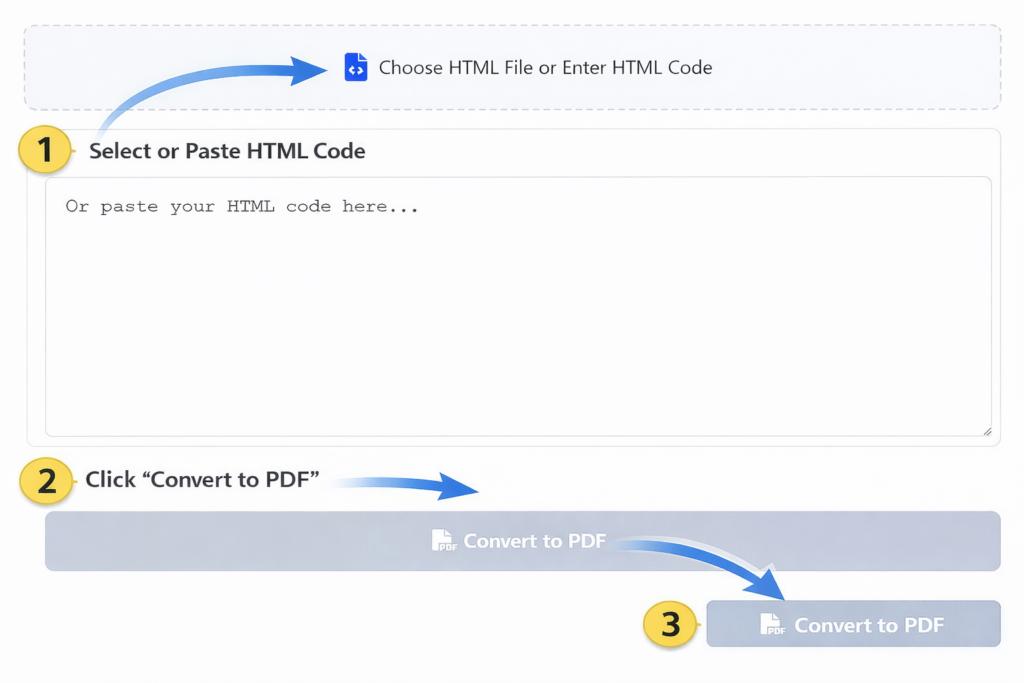
Option 1: Upload HTML File
- Click the “Choose HTML File or Enter HTML Code” button to browse your computer
- Select any .html or .htm file from your system
- The tool will automatically load and preview the HTML content
Option 2: Enter HTML Code Directly
- Type or paste your HTML code directly into the textarea provided
- The tool automatically processes your code after a brief pause in typing
- Preview your HTML content in real-time
Step 2: Review Information
After uploading or entering HTML, the tool displays:
- Source file name or identifier
- Content size
- Number of HTML elements detected
- Output format confirmation
Step 3: Preview HTML Content
The built-in preview shows your HTML content exactly as it will appear in the PDF, allowing you to verify formatting, layout, and content accuracy.
Step 4: Convert to PDF
Click the “Convert to PDF” button to begin the conversion process. The tool will:
- Load the necessary PDF generation libraries
- Render your HTML content exactly as a browser would
- Process the rendered content into PDF format
- Handle multi-page content automatically
Step 5: Download Your PDF
After conversion, click “Download PDF” to save the converted document to your computer. The PDF will maintain the visual appearance of your HTML content.
Key Features
Accurate HTML Rendering
Our converter uses browser-based rendering technology to ensure your HTML content appears exactly as it would in a web browser, including CSS styling, images, and layout.
Multi-Page Support
HTML content that spans multiple pages automatically creates multi-page PDF documents with proper pagination and page breaks.
CSS Support
Most CSS styles including colors, fonts, spacing, and positioning are preserved in the PDF output, maintaining your design integrity.
Image Integration
Images referenced in your HTML (including local and remote images) are captured and included in the PDF output.
Responsive Layout Preservation
The tool preserves responsive design elements and maintains proper scaling for optimal PDF presentation.
Browser-Based Processing
All conversion happens locally in your web browser, ensuring your HTML content remains private and secure on your own device.
Supported HTML and CSS Features
HTML Elements
- Text formatting (headings, paragraphs, lists)
- Tables and tabular data
- Images and multimedia elements
- Forms and interactive elements (rendered as static)
- Links and navigation elements
- Divisions and structural elements
CSS Properties
- Colors and backgrounds
- Fonts and typography
- Margins, padding, and borders
- Positioning and layout
- Flexbox and Grid layouts
- Transitions and animations (rendered as static)
External Resources
- External CSS stylesheets
- Web fonts (Google Fonts, etc.)
- Remote images and assets
- External JavaScript (for rendering purposes)
Common Use Cases
Web Content Archiving
Convert web pages, articles, or blog posts to PDF for offline reading, archiving, or sharing with others who may not have internet access.
Report Generation
Transform HTML-based reports, dashboards, or data visualizations into PDF format for printing, email distribution, or formal submission.
Invoice and Document Creation
Convert HTML invoices, receipts, contracts, or forms to PDF for professional presentation and record-keeping.
Email Content Conversion
Transform HTML email templates or newsletters to PDF for archiving, sharing, or printing.
Website Mockups to PDF
Convert HTML/CSS website mockups or prototypes to PDF for client presentations, documentation, or design reviews.
Educational Materials
Transform HTML-based learning materials, tutorials, or documentation into PDF format for printing or offline access.
Business Documents
Convert HTML business cards, flyers, brochures, or marketing materials to PDF for professional printing.
Best Practices for Optimal Results
Use Valid HTML
Ensure your HTML code is well-formed and valid. Properly closed tags and correct nesting produce the best conversion results.
Test CSS Compatibility
While most CSS is supported, test complex layouts or advanced CSS features before conversion to ensure they render correctly.
Optimize Images
For faster conversion and smaller PDF files, optimize images before including them in your HTML content.
Test Responsive Design
If using responsive designs, test how they appear at the fixed PDF dimensions (typically A4 or Letter size).
Preview Before Conversion
Always use the built-in preview to verify your HTML appears as expected before starting the PDF conversion.
Consider Page Breaks
For multi-page content, consider using CSS page break properties to control where pages break in the PDF.
Check External Resources
Ensure all external resources (images, fonts, CSS) are accessible and properly linked in your HTML.
Technical Information
How It Works
Our HTML to PDF converter uses html2canvas for HTML rendering combined with jsPDF for PDF generation. This combination ensures accurate visual representation of HTML content in PDF format.
Browser Compatibility
The tool works in all modern web browsers including:
- Google Chrome (version 60 or later)
- Mozilla Firefox (version 55 or later)
- Microsoft Edge (version 79 or later)
- Safari (version 11 or later)
PDF Specifications
- Format: Standard PDF 1.7
- Page Size: A4 (210 × 297 mm) by default
- Orientation: Portrait (configurable through CSS)
- Resolution: High resolution for clear text and images
Performance Considerations
Conversion speed depends on:
- Complexity of HTML and CSS
- Number of images and external resources
- Length of content (number of pages)
- Your computer’s processing power
Content Limitations
While most HTML content converts well, some limitations include:
- Interactive elements become static
- JavaScript functionality is not preserved
- Some advanced CSS3 features may have limited support
- Videos and animations are captured as static images
Frequently Asked Questions
Is there a limit to HTML file size or complexity?
There are no hard limits, but very complex HTML with many resources may take longer to process or require more system memory.
Are my HTML files secure during conversion?
Yes, completely secure. All processing happens locally in your web browser. Your HTML content is never uploaded to external servers.
Can I convert password-protected HTML content?
The converter processes whatever HTML content you provide. Password protection would need to be handled before the HTML reaches the converter.
What happens to JavaScript in my HTML?
JavaScript is executed during the rendering phase for proper content display, but interactive functionality is not preserved in the PDF output.
How are external resources handled?
External CSS, images, and fonts are loaded during conversion. Ensure these resources are publicly accessible or included locally.
Can I control PDF page size and orientation?
The default is A4 portrait. You can control this through CSS @page rules in your HTML content.
What about HTML forms?
Form elements are rendered as they appear visually, but their interactive functionality is not preserved in the PDF.
Can I convert entire websites to PDF?
You can convert any HTML content, but complex websites with many external dependencies may require adjustments for optimal conversion.
Is an internet connection required?
An initial internet connection is required to load the conversion libraries. External resources in your HTML also require internet access.
Troubleshooting Common Issues
Images Not Appearing
If images are missing from the PDF:
- Check that image URLs are correct and accessible
- Ensure images are not blocked by CORS policies
- Verify image formats are supported (JPEG, PNG, GIF)
Formatting Issues
If CSS formatting doesn’t appear correctly:
- Check for CSS syntax errors
- Ensure CSS is properly linked or embedded
- Test with simpler CSS to isolate issues
Font Problems
If fonts don’t appear correctly:
- Ensure web fonts are properly loaded
- Check font-face declarations
- Consider using fallback fonts
Performance Problems
For slow conversions:
- Reduce image sizes and quantities
- Simplify complex CSS animations
- Break very long documents into sections
PDF Quality Issues
If PDF quality is poor:
- Ensure images are high enough resolution
- Check that CSS units are appropriate for print
- Verify content fits within page boundaries
Advanced Usage Tips
Custom Page Sizes
Control PDF page size using CSS:
css
@page {
  size: letter landscape;
  margin: 1in;
}
Page Breaks
Control page breaks with CSS:
css
.page-break {
  page-break-after: always;
}
Print Styles
Use print-specific CSS to optimize PDF output:
css
@media print {
  .no-print { display: none; }
  .print-only { display: block; }
}
Headers and Footers
Add repeating headers and footers using CSS:
css
@page {
  @top-center {
    content: "Document Header";
  }
  @bottom-right {
    content: "Page " counter(page);
  }
}
Background Colors and Images
Ensure background colors and images are set to print:
css
* {
  -webkit-print-color-adjust: exact;
  print-color-adjust: exact;
}
Tips for Better Conversions
- Use Print Stylesheets: Create CSS specifically for print/PDF output
- Test with Sample Content: Convert a small sample first to verify formatting
- Optimize Assets: Compress images and minify CSS for faster processing
- Check Cross-Origin Resources: Ensure all external resources allow access
- Use Semantic HTML: Proper HTML structure converts more reliably
- Avoid Absolute Positioning: Relative positioning often converts better
- Test Font Rendering: Verify custom fonts render correctly in PDF
- Consider File Size: Large PDFs may be difficult to share or store
Support and Assistance
If you encounter persistent issues with the HTML to PDF converter:
- Ensure you’re using valid, well-formed HTML
- Check that all external resources are accessible
- Test with simpler HTML to isolate problems
- Verify your browser is updated to the latest version
- Check browser console for any error messages
- Ensure you have sufficient system memory available
For complex HTML documents with advanced features, consider breaking the content into smaller sections or consulting web development resources for HTML optimization tips.
Note: This tool is designed for converting HTML content to PDF format. For best results, ensure your HTML is well-structured and uses web-standard practices. Complex interactive elements or advanced JavaScript functionality may require additional processing or alternative conversion methods.