
Upload Excel File
Click to browse or drag and drop your Excel file here
Supported: .xlsx, .xls
Transform your Excel spreadsheets into professional PDF documents with our Excel to PDF Converter. Convert .xlsx and .xls files into formatted, printable PDFs while preserving your data structure, tables, and sheet organization.
Excel to PDF Conversion
Excel to PDF conversion is the process of transforming Microsoft Excel spreadsheet files into Portable Document Format (PDF) documents. This conversion allows you to take dynamic spreadsheet data and convert it into a fixed-layout document that can be easily shared, printed, or archived while maintaining the visual appearance and data organization of your original Excel file.
How to Use the Excel to PDF Converter
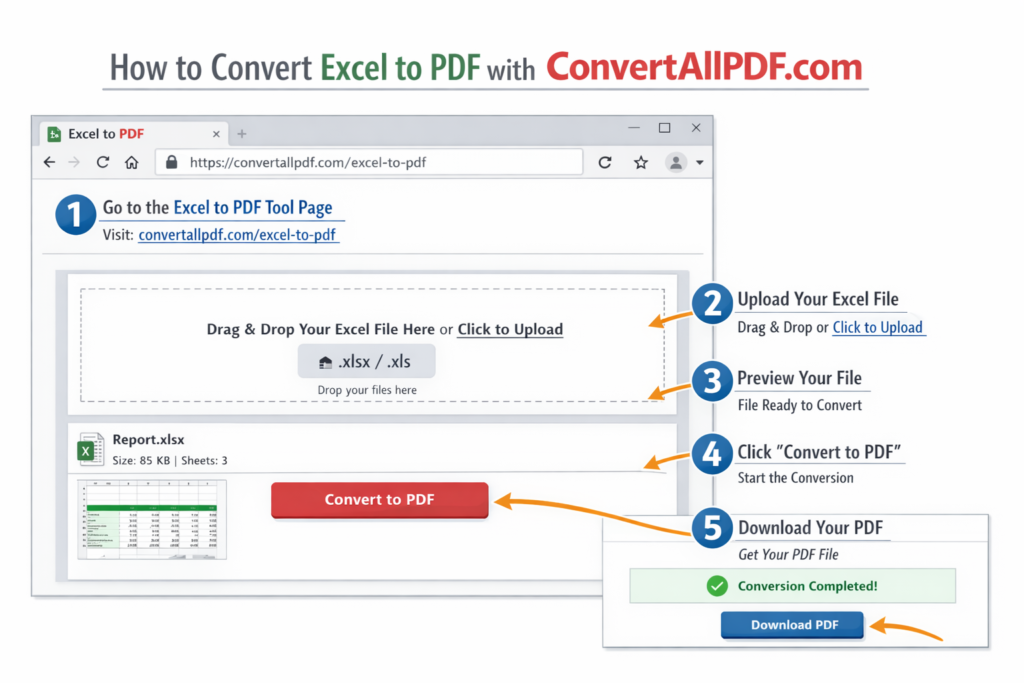
Step 1: Upload Your Excel File
Begin by uploading your Excel spreadsheet. You have multiple options:
- Click the upload area to browse your computer for Excel files
- Drag and drop your Excel file directly onto the upload area
- Click anywhere in the upload area to open the file browser
Step 2: Review File Information
After uploading, the tool displays important details about your Excel file:
- File name and size
- Number of worksheets in the workbook
- Date the file was last modified
Step 3: Preview Excel Content
The tool provides an interactive preview of your Excel data:
- Switch between different worksheets using tabs
- View data in a table format similar to Excel
- Review cell contents and formatting
- Verify that all data has been loaded correctly
Step 4: Convert to PDF
Click the “Convert to PDF” button to begin the conversion process. The tool will:
- Process each worksheet in your Excel file
- Preserve table structures and data formatting
- Add worksheet names as titles in the PDF
- Generate a multi-page PDF with proper pagination
Step 5: Download Your PDF
After conversion, click “Download PDF” to save the converted document to your computer. Each Excel worksheet becomes a separate page or section in the PDF document.
Key Features
Multi-Sheet Support
Convert Excel workbooks with multiple worksheets into comprehensive PDF documents with each sheet clearly labeled and organized.
Table Structure Preservation
Maintain the exact table structure from your Excel spreadsheets, including row and column organization, cell data, and basic formatting.
Data Integrity
Ensure all numerical data, text content, and formulas (rendered as values) are accurately transferred from Excel to PDF format.
Professional Formatting
Generate PDFs with clean, professional formatting including sheet titles, table borders, and organized data presentation.
Landscape Orientation
Default conversion uses landscape orientation to accommodate typical spreadsheet layouts and maximize data visibility.
Batch Processing
Convert entire Excel workbooks in one operation, including all worksheets and data ranges.
Browser-Based Security
All conversion happens locally in your web browser. Your Excel files never leave your computer or get uploaded to external servers.
Supported Excel Features
File Formats
- Microsoft Excel 2007+ (.xlsx)
- Microsoft Excel 97-2003 (.xls)
- Excel Macro-Enabled Worksheets (.xlsm)
Data Types
- Text and numeric values
- Dates and times
- Formulas (rendered as calculated values)
- Basic cell formatting
- Merged cells
- Row heights and column widths
Worksheet Elements
- Multiple worksheets/tabs
- Sheet names and organization
- Cell ranges and data sets
- Basic formatting (bold, italic, underline)
- Number formatting
Content Limitations
While most Excel content converts well, some limitations include:
- Complex charts and graphs may not render
- Advanced formatting may be simplified
- Macros and VBA code are not preserved
- Interactive elements become static
Common Use Cases
Financial Reporting
Convert financial spreadsheets, budget reports, and accounting statements to PDF for sharing with stakeholders, auditors, or management.
Data Analysis Sharing
Transform data analysis spreadsheets, pivot tables, and analytical models into PDF format for presentation or documentation purposes.
Inventory Management
Convert inventory lists, stock reports, and supply chain spreadsheets to PDF for printing, sharing, or record-keeping.
Academic and Research
Transform research data, statistical analysis, and academic spreadsheets into PDF format for publication or submission.
Business Documentation
Convert business plans, project timelines, and operational spreadsheets to PDF for professional documentation.
Sales and CRM Data
Transform sales reports, customer data, and CRM spreadsheets into PDF for meetings, presentations, or archiving.
Project Management
Convert project plans, Gantt charts, and task tracking spreadsheets to PDF for team distribution or stakeholder review.
Conversion Quality and Output
PDF Specifications
- Format: Standard PDF 1.7
- Orientation: Landscape (optimized for spreadsheets)
- Page Size: A4 (297 × 210 mm)
- Resolution: High resolution for clear text and data
Visual Presentation
- Each Excel worksheet becomes a separate PDF page
- Worksheet names appear as page titles
- Table borders and grid lines are preserved
- Data is organized in readable table format
- Multi-page worksheets are automatically paginated
Data Accuracy
- All cell values are accurately transferred
- Numerical formatting is preserved
- Text content maintains its original formatting
- Empty cells are represented appropriately
Best Practices for Optimal Results
Prepare Your Excel File
- Organize data in clear tables with headers
- Use descriptive worksheet names
- Remove unnecessary formatting or blank rows/columns
- Ensure data fits within printable page boundaries
Check Data Formatting
- Verify that numbers display correctly
- Check date and time formatting
- Ensure text alignment is appropriate
- Test merged cell behavior
Preview Before Conversion
Always use the built-in preview to verify:
- All worksheets are present and correctly named
- Data appears as expected
- No important information is cut off
- Formatting looks appropriate
Consider Print Layout
- Landscape orientation works best for most spreadsheets
- Consider page breaks for very large worksheets
- Check that column widths don’t cause data truncation
Save Originals
Keep copies of your original Excel files for future editing or reconversion needs.
Technical Information
How It Works
Our Excel to PDF converter uses SheetJS for Excel parsing and jsPDF with autoTable plugin for PDF generation. This combination ensures accurate data extraction and professional PDF formatting.
Browser Compatibility
The tool works in all modern web browsers including:
- Google Chrome (version 60 or later)
- Mozilla Firefox (version 55 or later)
- Microsoft Edge (version 79 or later)
- Safari (version 11 or later)
Performance Considerations
Conversion speed depends on:
- Size of your Excel file
- Number of worksheets
- Amount of data in each sheet
- Complexity of formatting
- Your computer’s processing power
File Size Limitations
While there are no strict size limits, very large Excel files may require more processing time and system memory. Consider:
- Splitting very large files into smaller workbooks
- Removing unnecessary data or formatting
- Converting worksheets individually if needed
Frequently Asked Questions
Is there a limit to file size or number of worksheets?
There are no hard limits, but very large files or workbooks with many worksheets may require more processing time and system resources.
Are my Excel files secure during conversion?
Yes, completely secure. All processing happens locally in your web browser. Your Excel files are never uploaded to any external servers or stored anywhere beyond your current browser session.
Can I convert password-protected Excel files?
The current version does not support password-protected Excel files. Remove password protection before attempting conversion.
What happens to Excel formulas?
Formulas are calculated and their resulting values are included in the PDF. The formulas themselves are not preserved in the PDF output.
How are charts and graphs handled?
Basic charts may render as static images in some cases, but complex charts and graphs may not convert perfectly. Consider exporting charts separately if precise visual representation is required.
Can I control PDF page orientation?
The default is landscape orientation, which works best for most spreadsheets. For portrait orientation, you would need to adjust the Excel layout before conversion.
What about cell comments and notes?
Cell comments and notes are not included in the PDF output. Consider incorporating important notes into cell text if needed.
Can I convert specific ranges instead of entire sheets?
The current version converts entire worksheets. To convert specific ranges, consider copying the desired range to a new worksheet before conversion.
Is an internet connection required?
An initial internet connection is required to load the conversion libraries, but your actual Excel data remains on your local machine throughout the entire process.
Troubleshooting Common Issues
File Upload Problems
If your Excel file won’t upload:
- Check that the file format is supported (.xlsx, .xls)
- Ensure the file is not corrupted
- Verify the file is not password protected
- Try a different Excel file to test basic functionality
Data Display Issues
If data doesn’t appear correctly in preview:
- Check for unusual formatting in the Excel file
- Verify that cells contain actual data, not just formatting
- Ensure the file is saved in a compatible Excel format
- Try opening and resaving the file in Excel
Conversion Errors
If conversion fails:
- Check browser console for error messages
- Ensure you have sufficient system memory available
- Try converting a simpler Excel file first
- Consider breaking large files into smaller sections
PDF Quality Issues
If the PDF output has problems:
- Check that data fits within page boundaries
- Verify font sizes are readable
- Ensure tables are properly formatted
- Consider adjusting Excel column widths before conversion
Missing Worksheets
If some worksheets don’t appear:
- Verify all worksheets contain data (empty sheets may be skipped)
- Check worksheet names for special characters
- Ensure worksheets are not hidden or very hidden in Excel
Tips for Better Conversions
- Clean Your Data: Remove unnecessary formatting and blank cells
- Use Descriptive Names: Clear worksheet names help in PDF navigation
- Check Print Area: Set appropriate print areas in Excel before conversion
- Test with Samples: Convert a small sample first to verify formatting
- Consider Pagination: Very wide tables may need adjustment for proper PDF display
- Save in Compatible Format: Use .xlsx format for best compatibility
- Backup Originals: Always keep your original Excel files
- Review PDF Output: Check the complete PDF before sharing or printing
Advanced Usage Tips
For Financial Reports
- Use number formatting consistently
- Consider adding summary sheets
- Include proper headers and footers
- Use landscape orientation for wide financial statements
For Data Analysis
- Include data source information
- Add explanatory notes in cells
- Consider adding a methodology sheet
- Use clear table headers for data interpretation
For Inventory Lists
- Include product codes and descriptions
- Add quantity and pricing columns
- Consider categorization headers
- Include timestamp or version information
For Project Management
- Use clear task descriptions
- Include status indicators
- Add timeline information
- Consider color coding for priority levels
Support and Assistance
If you encounter persistent issues with the Excel to PDF converter:
- Ensure you’re using an updated version of a supported web browser
- Check that your Excel file opens correctly in Microsoft Excel
- Verify the file is not corrupted or password protected
- Try converting a simpler Excel file to test basic functionality
- Check browser console for any error messages
- Ensure you have sufficient system memory available
For complex Excel files with advanced features, consider simplifying the spreadsheet or exporting specific ranges to ensure optimal conversion results.
Note: This tool is designed for converting Excel spreadsheet data to PDF format. For documents requiring exact visual replication of complex Excel features like advanced charts, conditional formatting, or interactive elements, additional manual adjustments or specialized conversion software may be necessary.